How Big Can I Print a 300 DPI Image? Complete Size Guide
To find how big you can print an image at 300 DPI, divide its pixel dimensions by 300. The result is the maximum print size in inches. A 3000 × 3600 pixel image, for example, prints at 10 × 12 inches at full 300 DPI quality. For centimetres, divide the pixels by 118.
That simple sum answers most questions, but it helps to know what the number actually means, why the “DPI” setting in a file can be misleading, and when you can safely print larger than the formula suggests. This guide covers all three, with a ready-made size table for the most common image sizes.
The Quick Formula
Print width (inches) = pixel width ÷ 300
Print height (inches) = pixel height ÷ 300
For centimetres, divide the pixels by 118.1 instead (300 pixels per inch is about 118 pixels per centimetre).
To check an image’s pixel dimensions, open its properties: Get Info on a Mac, Properties → Details on Windows, or the image info panel in most photo apps.
300 DPI Print Size Chart
The table below shows the maximum 300 DPI print size for common image dimensions, plus the size at 150 DPI, which is often acceptable for large prints viewed from a distance (more on that below).
| Pixel dimensions | Max size at 300 DPI (inches) | Max size at 300 DPI (cm) | Size at 150 DPI (inches) |
|---|---|---|---|
| 1080 × 1350 (social media image) | 3.6 × 4.5 | 9.1 × 11.4 | 7.2 × 9 |
| 1920 × 1080 (Full HD screenshot) | 6.4 × 3.6 | 16.3 × 9.1 | 12.8 × 7.2 |
| 2400 × 3000 | 8 × 10 | 20.3 × 25.4 | 16 × 20 |
| 3024 × 4032 (12MP phone photo) | 10.1 × 13.4 | 25.6 × 34.1 | 20.2 × 26.9 |
| 3600 × 5400 | 12 × 18 | 30.5 × 45.7 | 24 × 36 |
| 4000 × 6000 (24MP camera photo) | 13.3 × 20 | 33.9 × 50.8 | 26.7 × 40 |
| 4800 × 6000 | 16 × 20 | 40.6 × 50.8 | 32 × 40 |
| 6000 × 9000 | 20 × 30 | 50.8 × 76.2 | 40 × 60 |
| 7200 × 10800 | 24 × 36 | 61 × 91.4 | 48 × 72 |
If you are working with printable wall art supplied in several ratios, our printable wall art size guide lists the exact pixel dimensions needed for every standard frame size, in each ratio.
DPI vs PPI: What the Number Really Means
The two terms are used interchangeably, but they describe different things.
- PPI (pixels per inch) describes the image: how many of its pixels are packed into each inch of the print.
- DPI (dots per inch) describes the printer: how many tiny ink dots it lays down per inch to reproduce those pixels.
When people say “print at 300 DPI”, they almost always mean 300 pixels per inch of print. That is the figure that matters to you.
The DPI setting in a file does not change its quality
Image files carry a DPI value in their metadata, often 72 or 300. That number is only a label suggesting a default print size. Changing it from 72 to 300 in an image editor, without changing the pixel dimensions, makes no difference to quality at all. A 3000 × 3600 pixel file labelled “72 DPI” and the same file labelled “300 DPI” will print identically at 10 × 12 inches.
So when you are judging whether a file will print well, ignore the DPI label and look at the pixel dimensions.
Why You Cannot Simply Make an Image Bigger
Every digital image contains a fixed amount of detail. If you enlarge it in an image editor, the software has to invent new pixels between the existing ones, usually by averaging their colours. The image gets bigger, but it does not gain any real detail: edges soften, fine lines blur, and textures turn mushy.
The same thing happens when a print service enlarges a small file to fit a big print. That is why a low-resolution image printed large looks soft or pixelated, and why the best fix is always to start with a file that has enough pixels. If you need to change a file’s shape for a frame, see how to resize printable wall art without losing quality.
When Viewing Distance Lets You Print Larger
300 DPI is the standard for prints viewed close up, at roughly arm’s length, such as a small framed print on a desk or a book page. Wall art is usually seen from further away, and the further away you stand, the less detail your eye can pick out.
As a practical rule of thumb:
| Typical viewing distance | Resolution that usually looks sharp | Examples |
|---|---|---|
| Under 60 cm (2 ft) | 250–300 DPI | Desk prints, small gallery wall pieces, hallway art you pass closely |
| 1–2 m (3–6 ft) | 150–200 DPI | Art above a sofa, bed or sideboard |
| Over 2 m (6 ft+) | 100–150 DPI | Large statement pieces, stairwells, open-plan rooms |
These are guidelines, not hard limits. Soft, low-detail images such as misty landscapes or organic abstract art tolerate lower resolutions far better than images with crisp lines, text or fine texture. A minimalist line drawing at 150 DPI may show slightly fuzzy edges; a soft gradient abstract will often look perfect.
A worked example
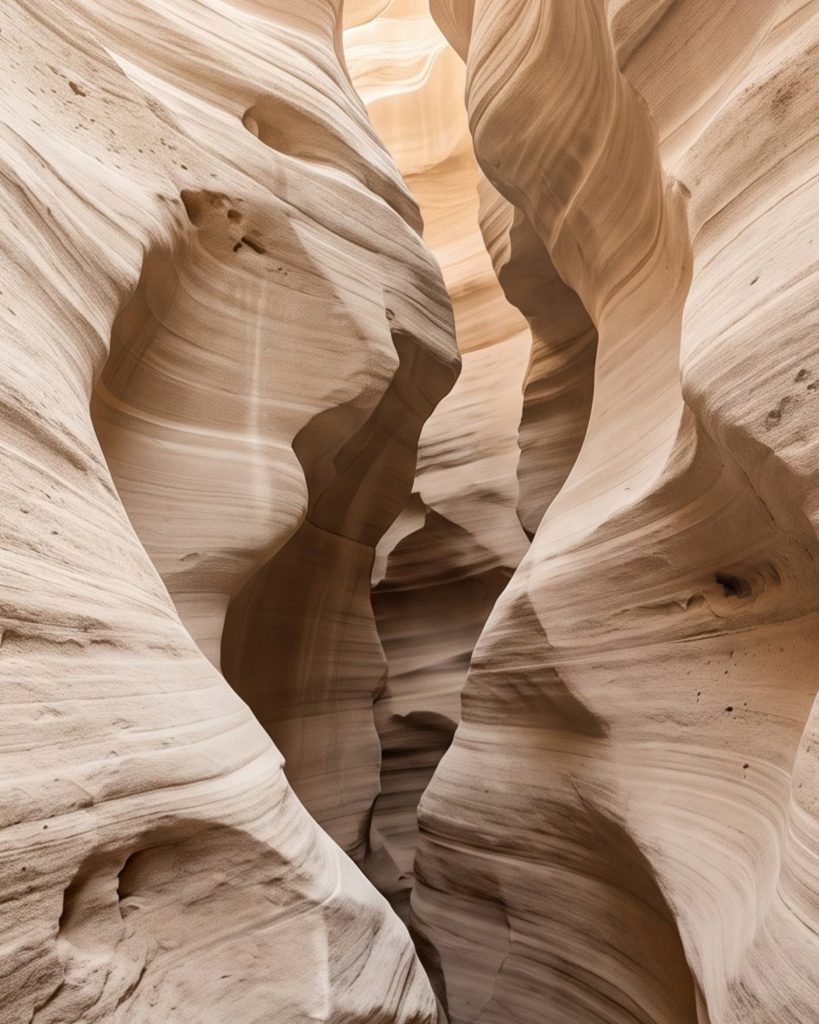
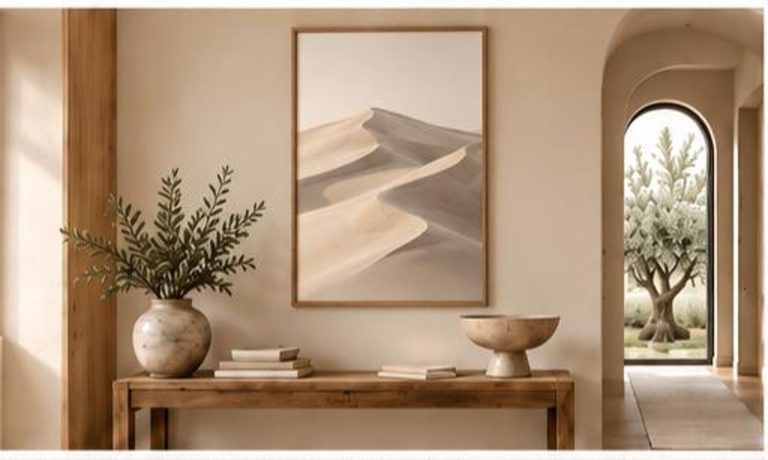
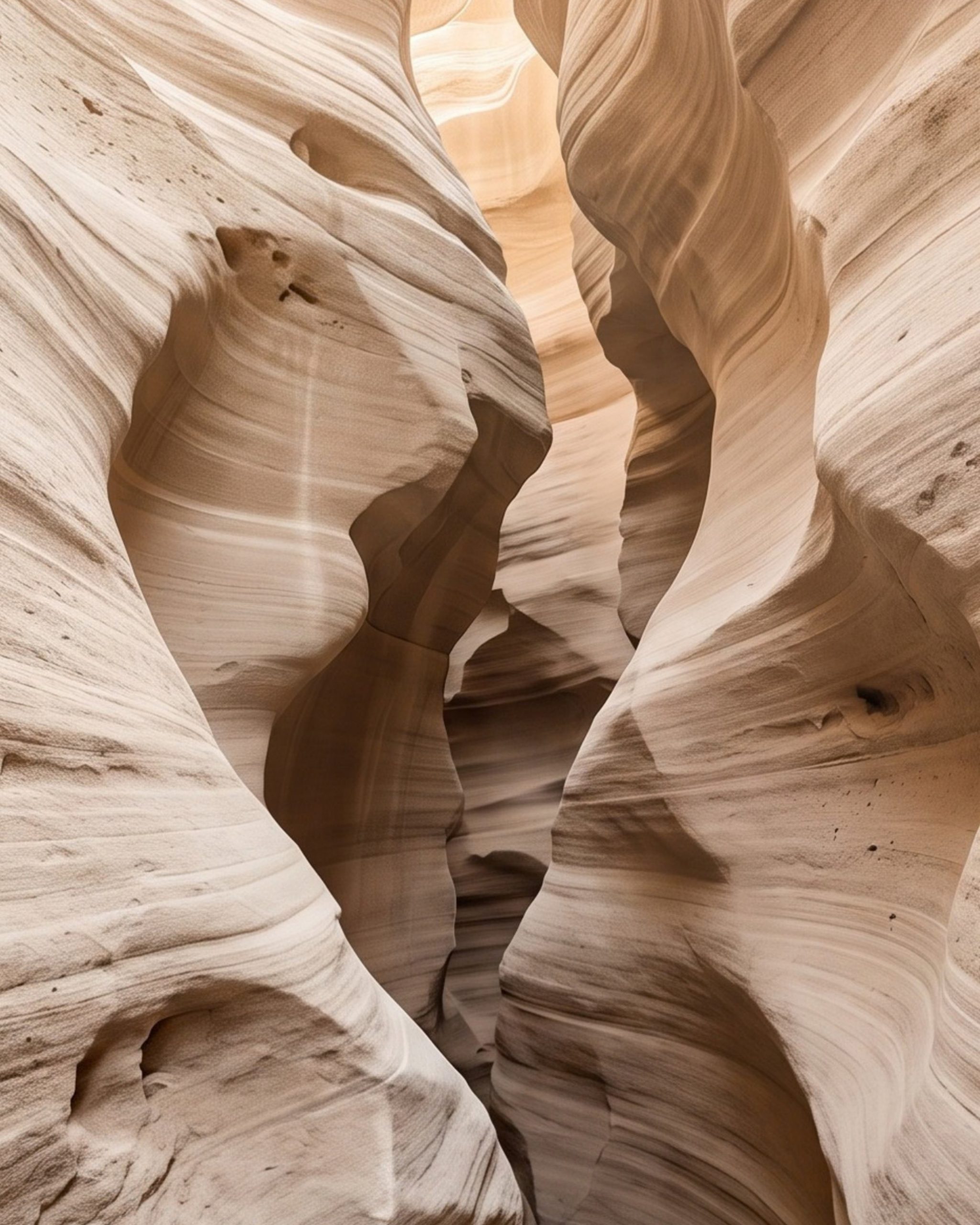
Our Canyon Passage print is a photorealistic piece with fine banding in the sandstone. Detail like that is exactly what shows first when resolution drops, so for a print you will see close up, such as in a narrow hallway, it is worth printing at a size the file supports at full 300 DPI. A soft, minimal piece such as Quiet Dunes, hung above a sofa and seen from a few metres away, has much more latitude.
When Upscaling Can Help
Modern AI upscaling tools can enlarge an image more convincingly than traditional resizing. Rather than simply averaging neighbouring pixels, they predict plausible detail. Adobe’s Super Resolution feature, for example, doubles an image’s width and height, and dedicated upscaling software can go further.
Upscaling can be worthwhile when:
- the image is soft and organic, without fine text or hard lines
- you only need a modest enlargement, roughly up to double the original dimensions
- a print lab offers it as a professional service and you can see a proof first
It is less reliable for detailed photography and line art, where it can introduce artificial-looking textures or wobble in fine lines. If you bought the artwork, the better first step is to ask the seller whether a larger file is available.
A Simple Process Before You Print
- Check the pixel dimensions of the file, not its DPI label.
- Divide by 300 to find the full-quality size.
- Consider viewing distance. For art seen from a few metres, you can usually go up to around double that size.
- Heed the printer’s warning. Most print services flag low-resolution files; if yours does, choose a smaller size.
- Order a small test crop at the final size if you are unsure, especially for detailed images.
Common Mistakes
- Changing the DPI number in an editor and assuming the file is now higher quality.
- Printing a screenshot or social media image large. They rarely have enough pixels for more than a small print. If a print has already come out soft, see why printable art looks blurry.
- Enlarging a file in an editor before sending it to print, which only softens it.
- Applying the 300 DPI rule rigidly to a large print seen from across a room, and ending up with art that is too small for the wall.
Final Thoughts
A 300 DPI image prints at its pixel dimensions divided by 300, in inches. Treat that as the safe size for anything viewed close up, use viewing distance to decide how much larger you can go, and remember that pixels, not the DPI label, determine quality.
For the next steps, see the best paper for printable wall art and where to print digital art from Etsy, and our guide to how big wall art should be for choosing the right size for your wall.