
Why Does My Printable Art Look Blurry? 9 Causes and Fixes
If your printable art looks blurry, the most likely cause is that the image has too few pixels for the size you printed it. That usually happens because the wrong file was used (a preview, screenshot or compressed copy instead of the original download), or because a small file was enlarged to fill a large frame. Re-print from the original, full-resolution file at a size it supports, and the blur usually disappears.
If that does not solve it, the problem is likely in the printing: printer settings, paper or the printer itself. Below are the nine most common causes, how to recognise each one, and how to fix it, followed by a quick troubleshooting check.
First: Is It the File or the Print?
Open the original file on a computer and zoom to 100% (actual pixels). Look at the area that seems blurry in the print.
- If it looks soft on screen too, the problem is the file, or the size you printed it at. Start with causes 1 to 4.
- If it looks crisp on screen but soft on paper, the problem is in the printing. Start with causes 5 to 9.
The 9 Causes and Fixes
1. The file is too small for the print size
How to spot it: edges look soft or slightly jagged, and fine detail is smudged, especially in larger prints.
Fix: check the file’s pixel dimensions and divide each by 300. That is the largest size in inches it can print at full quality. If you printed bigger, choose a smaller size or a larger file. Our guide to how big you can print a 300 DPI image has a ready-made chart.
2. You printed a screenshot or preview image
How to spot it: the file is small (often under 2000 pixels on its longest side) and may show other screen elements or a watermark.
Fix: listing photos, mock-ups and screenshots are made for screens, not printing. Download the actual purchased files. On Etsy, that means opening Etsy in a web browser (the app does not support digital downloads), going to Purchases and choosing Download files.
3. The wrong ratio file was used
How to spot it: the print is blurry and part of the image is cut off at the edges.
Fix: when a file’s shape does not match the print size, many printers enlarge it to fill the paper, cropping the edges and reducing the effective resolution at the same time. Use the file whose ratio matches your frame. Our printable wall art size guide shows which file belongs to which size.
4. The image was enlarged before printing
How to spot it: the file has large pixel dimensions, but detail looks soft and smeared even on screen.
Fix: enlarging a file in an editor adds pixels but no detail. Go back to the original download and resize only downwards, or not at all. See how to resize printable wall art without losing quality.
5. The printer settings are wrong
How to spot it: the file looks sharp on screen, but the print looks fuzzy, grainy or slightly banded.
Fix: in the print dialog, choose the highest quality setting (often called Best, High or Photo), and select the paper type that matches the paper you are actually using. The paper setting controls how much ink is laid down; the wrong setting can make ink spread and blur fine detail. Turn off any “fast” or “draft” mode.
6. The file was compressed in transit
How to spot it: blocky patches in smooth areas, halos around edges, or a file noticeably smaller than the original.
Fix: messaging apps, some email services and social platforms automatically shrink images. Never send the file through them on its way to the printer. Upload the original directly to the print service, or transfer it by USB, AirDrop or a cloud storage link that preserves the original file.
7. A browser preview fooled you
How to spot it: you saved the image by right-clicking it in a browser, or the file you printed is much smaller than the one you downloaded.
Fix: browsers and cloud apps often display a reduced preview of a large image. Saving or printing that preview gives you a low-resolution copy. Always download the file itself, then open it in an image viewer to check its pixel dimensions. The reverse can happen too: an image zoomed far beyond 100% on screen looks soft even when it will print perfectly well.
8. The paper is wrong for the job
How to spot it: fine lines look fuzzy and colours look slightly feathered, especially on plain or uncoated paper.
Fix: plain office paper lets ink soak in and spread. Use a coated photo paper or an inkjet fine art paper designed to hold ink on its surface. Heavily textured papers can also soften very fine lines, so choose a smooth surface for line art. Our guide to the best paper for printable wall art compares the options.
9. The printer itself is the limit
How to spot it: faint horizontal lines (banding), missing colours, or a generally soft result whatever you print.
Fix: run your printer’s nozzle check, head cleaning and print-head alignment routines, which often cure banding and soft edges. If an older or basic printer still cannot produce a sharp result, send the file to an online lab or fine art printer instead. Our guide to where to print digital art from Etsy compares UK and US options.
Quick Troubleshooting Checklist
- Find the original download. Not a screenshot, preview, emailed copy or edited version.
- Check its pixel dimensions and divide by 300 to find the maximum full-quality size.
- Check the ratio matches your print size.
- Zoom to 100% on screen to see whether the file itself is sharp.
- Upload the original directly to the print service, or send it to your printer without passing through a messaging app.
- Set the printer to its highest quality and the correct paper type.
- Use proper photo or fine art paper.
- Run a nozzle check and alignment if printing at home.
- Print a small test crop before re-printing the full size.
Soft by Design: When Blur Is Not a Fault
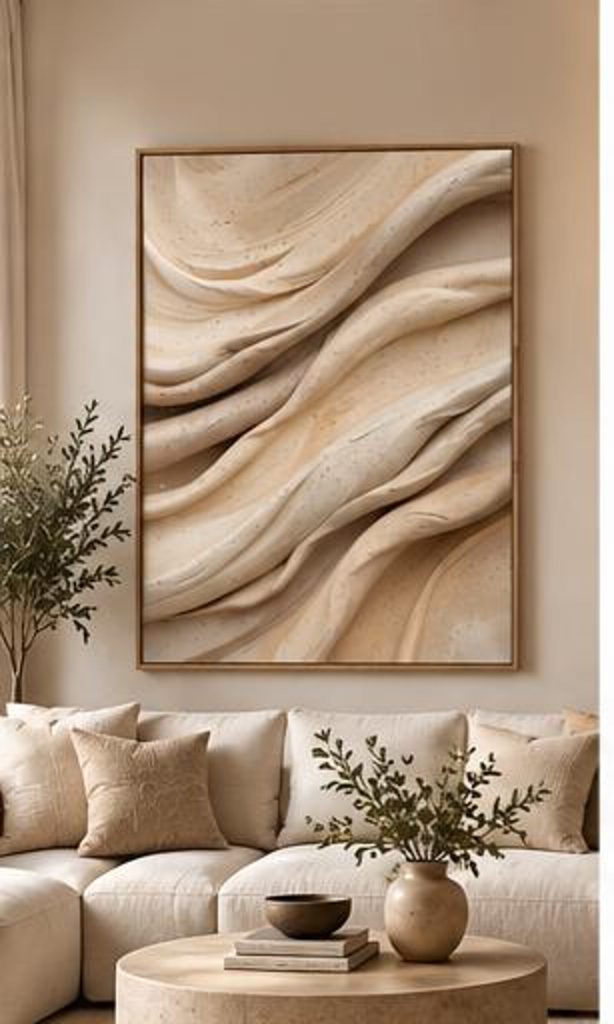
Some artwork is meant to look soft. Atmospheric photography, misty landscapes and many organic abstracts use gentle gradients and diffused edges on purpose. In our own Deep Earth Relief, for example, the shadows between the carved folds fade gradually rather than ending in hard lines. That softness is part of the calm, and a sharp print will reproduce it faithfully.
A useful test is to compare the print with the original file at the same viewing size on screen. If the two look the same, the print is correct. If the print has lost detail the file clearly shows, work through the checklist above.
How to Prevent Blurry Prints Next Time
- Choose the frame first, then print the matching ratio file at a size it supports.
- Keep the original downloads in a dedicated folder, separate from edited copies.
- Avoid sending print files through messaging apps.
- Use good paper and the highest printer quality setting.
- For large prints, use a lab and order a small test first.
Final Thoughts
Blurry printable art almost always comes down to resolution, the wrong file, or the wrong print settings, and all three are easy to fix. Start from the original download, check that its pixels support your print size, match the ratio to your frame, and give the printer good paper and a high-quality setting. Your next print should look exactly as crisp as the file.