How to Resize Printable Wall Art Without Losing Quality
The best way to resize printable wall art is often not to resize it at all. Start by choosing the file whose ratio matches your frame, then let the printer scale it to the exact size. If you do need to change the shape or size yourself, always lock the aspect ratio, crop rather than stretch, and only ever make the image smaller or keep it the same, never significantly larger.
This guide explains when resizing is genuinely needed, how to do it in Canva, common image editors and your printer’s settings, and the mistakes that make a sharp file print soft or distorted.
Step One: Choose the Right Ratio File
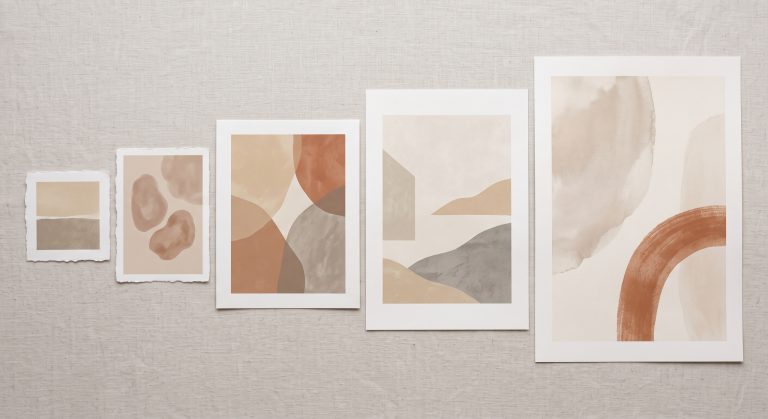
Most printable art is supplied as several files, each in a different aspect ratio (the proportion of width to height), typically 2:3, 3:4, 4:5, 11:14 and the A-series. Each file can be printed at any size within its ratio without editing.
So before opening any editing software, check which ratio your frame belongs to. An 8×10 in frame takes the 4:5 file; an A3 frame takes the A-series file; an 18×24 in frame takes the 3:4 file. Our printable wall art size guide has the full chart.
If a matching file exists, you only need to tell the printer the size. Nothing about the image needs to change.
When You Actually Need to Resize
Resizing is useful in a few specific situations:
- Your frame is an unusual size that does not match any supplied ratio.
- You are printing at home and need the image to fill a particular area of a sheet, such as an 8×10 in image on US Letter paper or an A5 image centred on A4.
- A print service asks for exact pixel dimensions rather than scaling the file itself.
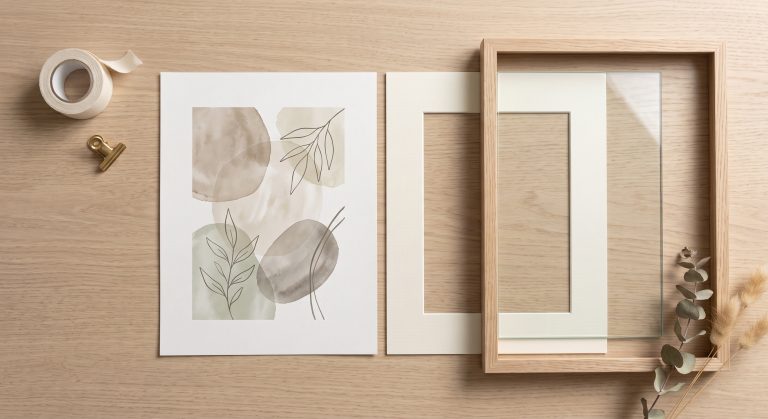
- You want a border of plain paper around the image, to trim or to frame without a mount.
Cropping, Stretching and Padding
When an image and a frame have different shapes, there are only three things you can do. The diagram shows a tall 2:3 image going into a broader 4:5 frame.
Crop
shape kept, edges trimmed
Stretch
image distorted
Pad
whole image, plain bands
Fitting a 2:3 image into a 4:5 frame: cropping keeps the circle round, stretching turns it into an oval, padding keeps everything but adds plain bands.
- Crop trims part of the image so the remainder matches the frame’s shape. Proportions stay true. This is usually the right choice, as long as nothing important sits near the edges.
- Stretch forces the whole image into the new shape, distorting it. Circles become ovals, curves flatten, figures look squashed. Avoid it.
- Pad keeps the entire image and fills the gap with a plain colour. It suits art that will sit inside a mount, which hides the bands, or a deliberate white border.
How to Resize in Canva
Canva is a convenient option if you do not have an image editor.
- Choose Create a design → Custom size and enter the exact print size, switching the units to inches or centimetres.
- Upload your highest-resolution file and add it to the design.
- To crop, drag the image until it covers the whole page, keeping the corner handles locked so it scales evenly. Double-click the image to reposition what is visible.
- To pad, size the image to fit within the page and set the page background to white or a soft neutral.
- Download as a PDF Print or a high-quality PNG, not a compressed JPG.
Canva works at the resolution of the file you upload. It cannot add detail, so a small file will still print soft at a large size.
How to Resize in an Image Editor
Photoshop and Photoshop Elements
- To crop to a new ratio, use the Crop tool and type the ratio or exact size into the options bar.
- To set a print size without altering pixels, open Image → Image Size, untick Resample, then change the width or height. The resolution figure updates to show what you will get.
- Keep the link (chain) icon active so width and height change together.
GIMP (free)
- Use Image → Print Size to set dimensions without resampling.
- Use the Crop tool with Fixed: Aspect ratio ticked to crop to a new shape.
Preview on Mac
- Tools → Adjust Size, with Scale proportionally ticked. Untick Resample image if you only want to change the print size.
Windows Photos and Paint
These are fine for simple downsizing, but they offer limited control over print size and resolution. For anything more than a quick crop, a free editor such as GIMP gives better results.
Letting the Printer Resize for You
Often the simplest approach is to leave the file alone and let the print service or your printer scale it.
- Online labs and photo counters scale your file to the size you order. If the ratio matches, nothing is lost; if not, they will show a crop box. Check it carefully before ordering.
- Home printing: in the print dialog, choose Fit to keep the whole image (padding where needed) or Fill to cover the paper (cropping). Turn off Borderless unless you want edge-to-edge prints, because borderless printing slightly enlarges the image and trims the edges.
- Printing a specific size on a larger sheet: set a custom scale, or create a page of the right size in your editor, then print at 100% or “actual size”.
Keeping the Quality
- Always lock the aspect ratio. This single habit prevents distortion.
- Making smaller is safe; making larger is not. Reducing an image keeps its sharpness. Enlarging it beyond its native resolution adds no real detail. Our guide to how big you can print a 300 DPI image shows each file’s limit.
- Work from the original file every time, rather than editing an already-edited copy.
- Save at maximum quality. Each low-quality JPG save throws away detail. Use PNG, TIFF or a JPG at the highest quality setting.
- Do not change the DPI label to “improve” the file. It has no effect on quality.
When Not to Resize
Leave the file exactly as it is when:
- a supplied ratio already matches your frame
- the print service will scale it to your chosen size
- you would need to enlarge it far beyond its pixel dimensions; choose a smaller print or ask the seller for a larger file instead
- cropping would cut into an important part of the composition; choose a different frame, or use a mount
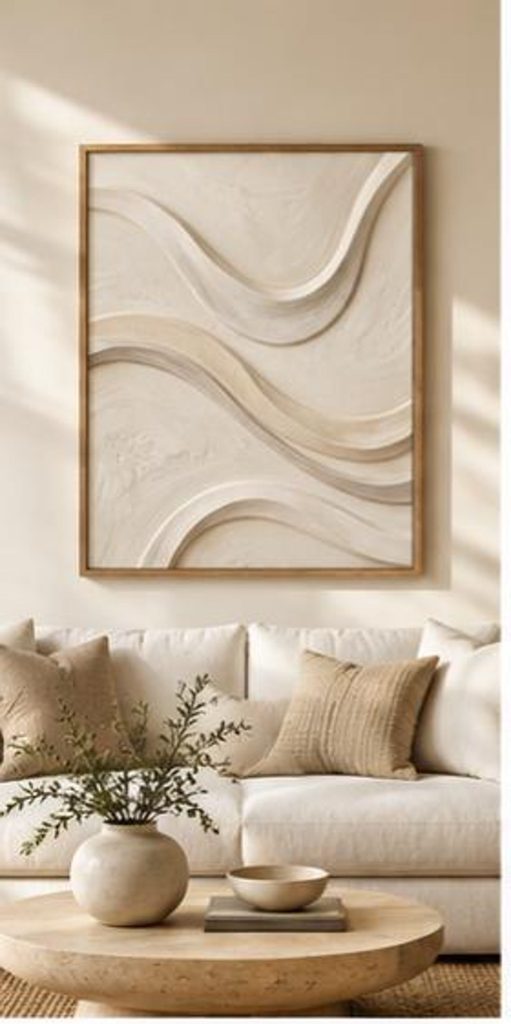
A good example is Gilded Strata from our collection. Its layered bands sweep all the way to the edges, so a home-made crop can easily cut a band awkwardly. That is exactly why every piece in our Neutral Abstract Printable Wall Art Collection comes with a separately composed file for each ratio: the resizing has already been done with the composition in mind.
Common Mistakes
- Dragging a side handle instead of a corner, which stretches the image.
- Enlarging a small file to fill a big frame, which makes it blurry. Our guide to why printable art looks blurry covers this and eight other causes.
- Resizing a file that already matched the frame, adding a quality loss for no benefit.
- Printing “borderless” without realising it crops the edges.
- Exporting at low JPG quality after editing.
Final Thoughts
Resizing printable art is mostly about restraint. Use the file that matches your frame, let the printer handle the scaling, and when you must change the shape, crop with the aspect ratio locked rather than stretching. Keep enlargements modest, save at full quality, and the print will look as crisp as the original file.
Once your file is ready, see the best paper for printable wall art and where to print digital art from Etsy.